AI Cat Dance: Make Your Cat Dance From a Photo
Create an AI cat dance video using a clear pet photo. Compare the cat duo and kitten trio, assign each cat and check fur, paws and audio.
Compare a pet dance result
The cat-and-dog example lets you inspect faces, markings, paws and movement. Its character portrait was recreated from the video because the original upload is no longer available; it is not proof that this recreated image produced that result. For your own generation, use separate original photos and check each animal through turns and overlaps.
An AI cat dance turns a pet photo into a fictional dancing-cat video. Your cat does not need to stand upright, wear a costume or learn a routine for the input image. A clear, ordinary photo is the starting point; the dance reference supplies the movement.
In Babydoll Dance AI, select Pet and choose a source clip. Use Separate photos to assign each selected cat yourself, or One shared photo for a clear picture of all two or three pets in a duo or trio. Here is how to choose between them and avoid confusing the assignments.
Two cat references with different routines
The living-room cat duo shows a brown tabby on the viewer’s left and a black-and-white tuxedo cat on the right. It is the Babydoll pet reference and retains the audio from that source video.
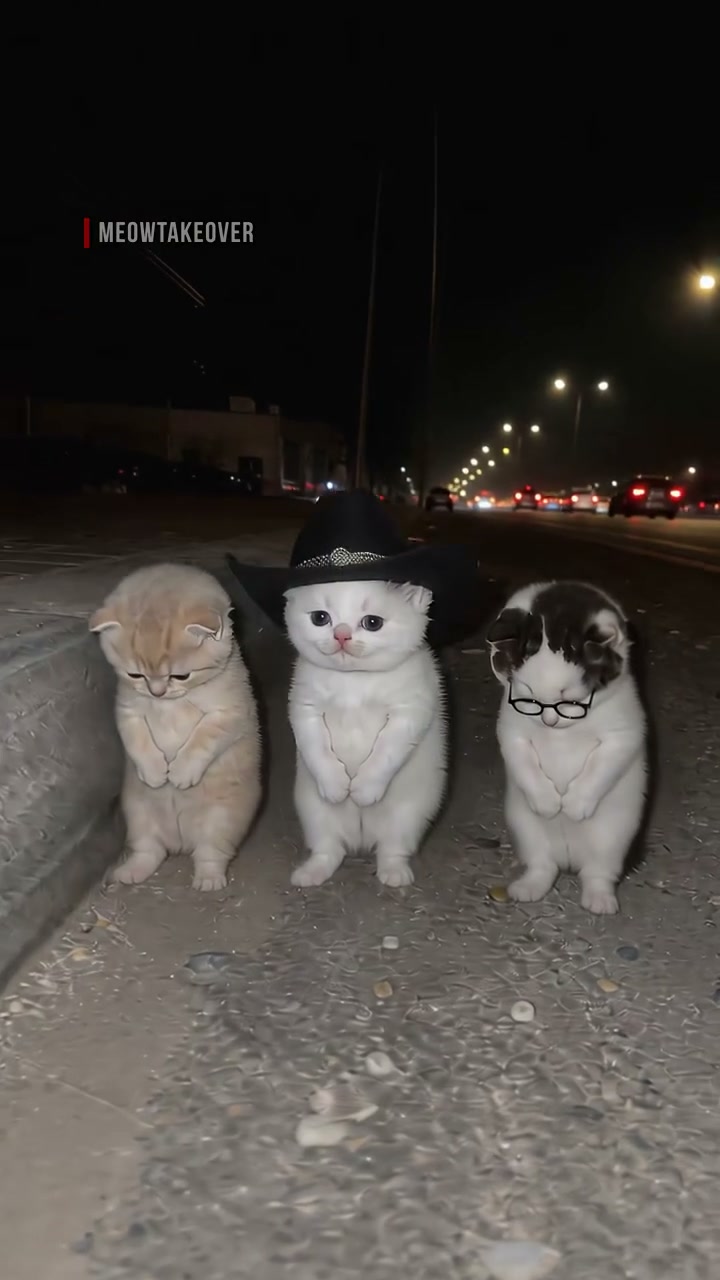
The roadside kitten trio follows three kittens at night. The cream kitten starts on the left, the white kitten in a black cowboy hat starts in the center, and the black-and-white kitten with round glasses starts on the right. It has its own dance and source soundtrack, rather than the Babydoll track.
| What you want to make | Reference to consider | Photos to prepare |
|---|---|---|
| Your cat joins one source cat | Living-room duo | One photo for the selected side |
| Two of your cats dance together | Living-room duo | One photo per cat, or one shared photo of two pets |
| Three pets share a routine | Roadside kitten trio | Three separate photos, or one shared photo of three pets |
| One pet leads the kitten trio | Roadside kitten trio | One photo for Center |
Both previews are third-party AI-animated source clips, not examples of results generated by this site. The model can change their appearance when it makes your version.
Choose a photo that shows more than the face
A close-up of a cat’s face may show its eyes beautifully but leave the model without information about its body, legs and tail. Prefer a full-body view with the cat’s outline clearly separated from the background.
A standing pose is useful, but do not force a pose for a photo. An ordinary image with visible paws and a recognizable body can provide more useful detail than a stressed or heavily obstructed standing shot. Avoid a cat curled tightly into a blanket, half hidden behind furniture, or overlapping another animal.
Look for visible identifying details: the shape of the face, the color around the eyes, chest markings, leg stripes and tail pattern. Use a sharp JPG or PNG under 10 MB, and keep strong filters out of the input.
For two or three cats, individual images let you assign the positions yourself. Alternatively, choose One shared photo and include exactly the number of pets in the duo or trio. The pets map to the reference from left to right. Avoid overlapping bodies, and use separate photos if only some positions should change.
Upload each cat to a specific position
Open the chosen template and select “Use this template.” Animal references open with Pet mode selected. Choose Separate photos and click a cat’s position card to upload its image, or select One shared photo and upload the group picture once.
The left, center and right labels refer to the opening preview from your viewpoint. For the kitten trio, the hat and glasses help identify the original positions. The request then asks the model to follow those subjects through the routine, even when they turn or change their screen positions.
Leave any position empty if you want to keep that source cat. For example, filling only the right slot of the living-room duo asks for your pet on the right and the original tabby on the left. To personalize the whole pair, fill both slots.
What the reference can—and cannot—control
The source supplies the routine and camera timing. Choose Dance video background to request its setting, or My photo background to request scenery from the uploaded photo. For example, a sofa in your cat photo can guide the setting when My photo background is selected. AI may still change furniture, lighting or other details; choosing that option does not preserve the room exactly.
The source can also influence clothing and accessories. The trio’s cowboy hat and glasses may affect the generated appearance. The living-room duo was upscaled from a smaller source, so a larger playback frame does not restore detail missing from the original.
The current AI request is at 720p. The 720 × 1280 reference video is a preview format, not a guarantee of output resolution or precise fur detail.
Review paws, markings and identity
Watch the entire result, especially turns and moments when cats move close together. These are useful checks:
- Does each cat retain its own face and markings?
- Do the paws remain connected to the right legs?
- Does the tail move consistently without merging into another subject?
- Does a hat or pair of glasses obscure details you wanted to show?
If one pet looks too much like a source cat, try a clearer input with stronger visible markings or choose a reference with less overlap. AI animation can still change anatomy and identity; it is not a faithful recording of your pet.
Cat dance questions
Can I use a dog in a cat reference?
Pet mode accepts a pet replacement, but transferring a cat routine to a different species can make anatomy less consistent. The dog dance guide covers references with dogs already in the scene.
Is making the video free?
You can browse and watch the cat dance reference clips for free. Creating your own video requires a signed-in account and a one-time video pack, with no subscription or recurring charges; see current pricing. Downloading your completed video is included. A failed generation returns its credit once the failure is confirmed.
Will the finished video have sound?
The studio prepares audio from the selected source for preview and download. Enable sound to check it. Different cat references can have different tracks, and a video purchase does not include rights to the original footage or music.
Compare the cat duo and kitten trio, then choose which pet positions will be yours. For a different soundtrack and an expressive solo, explore the Bad Times pet dance template. Its reference uses an AI dog; a cat can take the same position, though cross-species movement can be less consistent.
For a single-cat reference, compare the Toc Toc knocking cat with the Can Can Paris kitten. The first emphasizes hops and sideways kicks; the second uses a red costume and small theatrical steps. The Mi Chico pet dance adds a bunny-based alternative and a separate rooftop photo/result example, clearly distinguished from its selectable pet reference.
The C-Walk cat reference adds living-room footwork, while the SaWaDiKa headphone cat uses overhead paw gestures in a purple-lit bedroom. Both have one active pet role. Their separate human previews and reference choices are explained on the detail pages, so compare those before entering the studio.