How to Make a Babydoll Dance AI Video From Photos
A practical Babydoll dance AI tutorial: choose a reference, assign photos to dancers, preview the result and download a video with source audio.
Watch a one-photo replacement
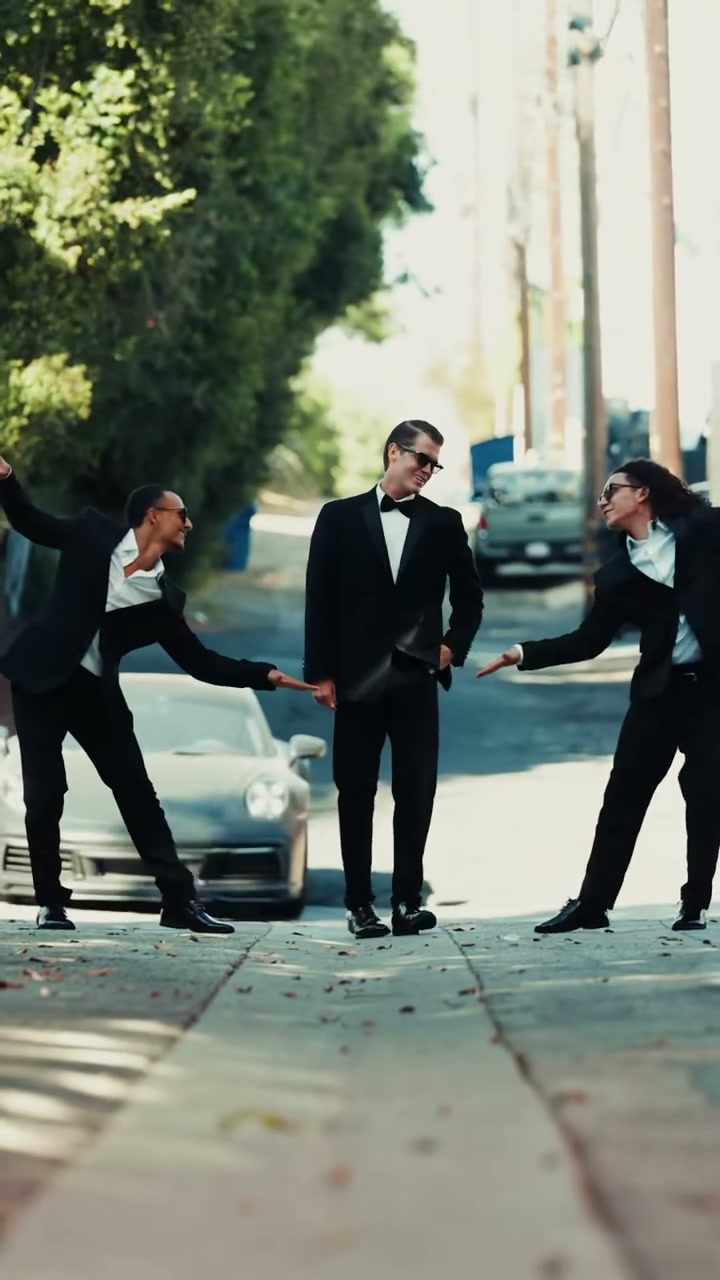
The street trio case study pairs the original uploaded portrait with its generated result. Only the center performer was replaced; the two outer performers remain from the reference. A three-person scene does not require three uploads when you only want to change one position. Compare the face and outfit through the full clip, not only its opening frame.
You can select photos locally before signing in. Your draft is saved in this browser for up to 24 hours, so it can survive login and checkout. Photos are uploaded only when you explicitly submit a generation.
A Babydoll dance AI video starts with a reference dance and a photo of the person you want to put into it. The reference supplies the steps and camera timing; your photo supplies the replacement person. You can request either the reference setting or scenery from your photo. You do not need to film yourself dancing.
On Babydoll Dance AI, the useful decision is which dancer to replace. You can personalize one position in a trio, replace both partners in a duo, or choose a solo with only one subject. This guide walks through that process and the checks to make before spending a video credit.
1. Watch the reference before choosing it
Open the dance template library and play a clip. Look at the number of dancers, how clearly their bodies are visible, and whether the camera stays still. The preview is a source reference, not an example of a result generated by this site.
For a first attempt, compare these options:
| Reference | Selectable positions | Good starting point for |
|---|---|---|
| Leafy-street solo | One dancer | One photo and a simple assignment |
| Couple two-step | Left and right | You and a partner |
| Street two-step trio | Left, center and right | Joining two source performers or casting three people |
Left and right always mean the viewer’s perspective in the opening shot. A performer can move across the screen later; the assignment identifies the original dancer to follow, rather than a fixed patch of the frame.
Not every group reference lets you replace the whole group. Some offer only the foreground lead. Check the template’s “Dancers to replace” section before uploading.
2. Prepare one clear photo per selected dancer
Use a sharp JPG or PNG under 10 MB with one clearly visible subject. A standing, full-body photo gives the model information about clothing and proportions as well as the face. Keep hands and feet in the image where possible.
Choose a photo in which you can see the face without zooming in heavily. Strong filters, deep shadows and a cropped-off chin remove useful information. A busy background matters less than an obscured subject, but a simple background makes the body outline easier to read.
For multiple dancers, choose Separate photos to assign each selected position yourself. Duo and trio references also support One shared photo: include exactly two or three clearly separated subjects, mapped to the reference from left to right. Use separate photos if people overlap or you want to replace only some dancers. See the couple dance guide for both approaches.
3. Match your photos to the dancer slots
Choose “Use this template” to open the reference in the studio. Select Person, then click a dancer card to upload its photo. Repeat only for the positions you want to personalize.
For example, to join the street trio as the center dancer, fill Center and leave Left and Right empty. The request will ask the model to replace the center performer and preserve the unassigned people. You do not need to fill all three cards.
Review the assignments before continuing. Changing a template or switching modes clears the photos, so choose your reference first and upload afterward. Choose Dance video background to request the source setting, or My photo background to request scenery from your uploaded photo. A beach in the photo only guides the setting when My photo background is selected; AI can still change the scene.
4. Review the cost and generate
Watching generated examples and browsing source references is free. Creating a personalized video requires a signed-in account and a one-time video pack, with no subscription or recurring charges. Downloading your completed video is included. Check the current video pack pricing before purchasing.
The built-in references run for about 7–15 seconds in portrait or landscape framing. Each template page shows its own duration and source dimensions. AI generation is requested at 720p. Preview dimensions describe the reference, not a promise of the same output resolution.
Generation can take several minutes and longer when the provider is busy. Use My videos to return to an existing task rather than submitting another request just because the result is taking time.
5. Check the finished video with sound
Once a task succeeds, the studio prepares its original reference soundtrack for the preview and download. Use “Play with sound” to listen. Download becomes available after audio preparation finishes; if that step fails, use its retry action.
Watch the whole clip before saving it. Check the face during turns, hands during fast gestures, and feet against the ground. With several people, also check that identities do not swap when bodies overlap.
| If you notice… | Check this before another attempt |
|---|---|
| A face that looks too generic | Use a sharper, more evenly lit input photo |
| Two people appearing in the wrong slots | Recheck the viewer-relative photo assignments |
| Clothing or accessories from the source | Try a clearer full-body photo; source appearance can still influence the model |
| A quiet preview | Enable sound and check that soundtrack preparation completed |
A better input can help, but no photo or reference guarantees a precise likeness. A new generation is a new task; it is different from retrying the audio preparation for an already completed video.
Common questions
Does every template use the Babydoll song?
No. The Babydoll references use their source audio, while some animal routines have a different soundtrack. Read the selected template’s soundtrack note. A purchased video credit does not grant rights to third-party footage or music.
Can I use a pet photo instead?
Yes. Select Pet and choose an animal reference. Start with the cat dance guide or dog dance guide for advice on paws, fur and pet-specific positions.
Can I upload a different dance or change the scenery?
The current creator offers its built-in dance references. Choose a different reference for a different routine. To request a different setting, select My photo background; Dance video background requests the reference scene. AI can still change scenery details, so inspect the finished video before sharing.
Choose a dance reference and decide which position will be yours.