Babydoll Dance AI for Couples: Shared or Separate Photos
Make a Babydoll dance AI video for couples with one shared photo or two separate photos. Choose a duo, assign the partners and select your background.
Inspect a duo example
The garden duo case study shows two characters sharing a scene. Its character reference is recreated from the previously generated video, not the original input photos. Watch for identity changes when people move close together, and compare clothing, hands and framing. For your own duo, choose individual photos with comparable lighting and assign each to the intended position.
To make a Babydoll dance AI video for a couple, choose a two-person reference. Use One shared photo for a clear portrait of both partners, or Separate photos to assign an individual picture to each dancer. Check who takes the left and right roles before generating.
You do not need a photo taken together, matching outfits or a recording of either person dancing. Two separate, clear photos are often easier to assign than a shared portrait. The selected reference supplies the movement and scene for both partners.
Choose a couple reference that fits the occasion
Watch the clips rather than choosing from the cover alone. A relaxed indoor routine can feel different from an outdoor two-step, even when both have the same number of dancers.
| Couple reference | Opening left position | Opening right position | Setting |
|---|---|---|---|
| Couple two-step | Blue jersey | Light sweatshirt and shorts | Outdoors on grass |
| Driveway couple dance | Red top and dark jeans | Navy top and beige trousers | House driveway |
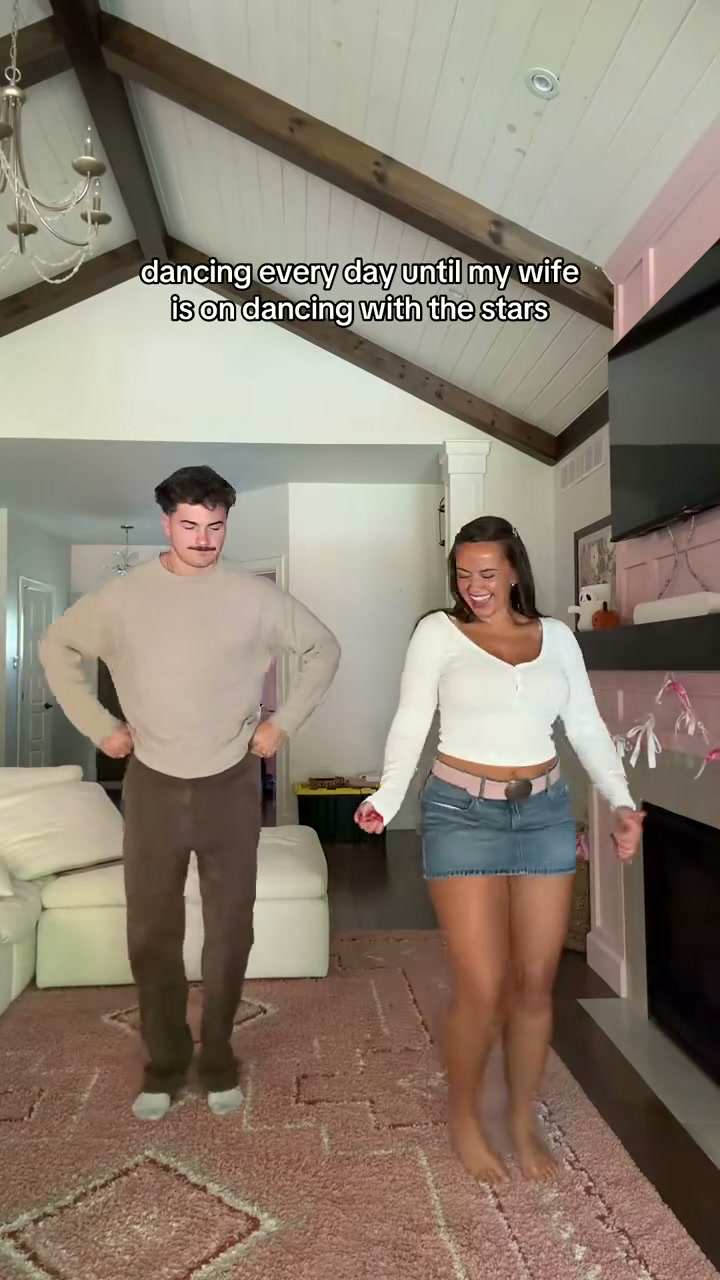
| Living-room couple dance | Beige sweater and brown trousers | White top and denim skirt | Living room |
| Golden-years two-step | Peach top and plum trousers | Navy sweater and light trousers | Indoor wooden floor |
These descriptions identify the source performers. They are not instructions to dress your partner in those clothes. Your photos guide the replacement appearance, though the source outfits and movements may still influence the result.
For an anniversary or a family surprise, the golden-years reference offers another couple setting. You can cast adult partners of different ages into any suitable duo; choosing a source does not guarantee a particular age, outfit or likeness in the output.
Choose one shared photo or two separate photos
For a shared photo, include exactly two consenting adults with both faces and bodies clearly visible. The person on the left maps to the left role, and the person on the right maps to the right role. Avoid crossed arms, overlapping faces or a third person in the frame. Use separate photos if you want to assign the partners independently or replace only one dancer.
Use one person per image. A full-body standing photo with a visible face, arms and legs is a useful starting point. Avoid one tightly cropped selfie paired with a distant full-body shot: the model has very different information about the two people.
Separate photos can be taken on different days. Similar lighting and image clarity make the inputs easier to assess, while the backgrounds do not need to match. Choose Dance video background to request the reference setting, or My photo background to request scenery from the uploaded photo. These are generation instructions; the result can still change details.
Before uploading, check:
- Each image contains the intended person without another person overlapping them.
- Faces are sharp enough to recognize without a heavy filter.
- Hands and feet are visible where possible.
- Both people agree to be included in the video.
Use JPG or PNG files under 10 MB each. You do not need to combine the photos into a collage.
Assign the partners from the viewer’s perspective
Open a template and choose “Use this template.” In the studio, select Person and choose your photo mode. With Separate photos, click Left partner and upload one person, then click Right partner and upload the other. With One shared photo, upload the couple portrait once and check the left-to-right order.
For the living-room reference, Left means the original performer in the beige sweater. Right means the original performer in the white top. It does not mean your partner’s own left hand or right shoulder.
Look at both uploaded thumbnails before generating. If you assigned a photo incorrectly, remove or replace it in that slot. If you switch to a different template, the assignments clear, so pick the scene before filling the cards.
Replace both partners—or only one
For a personalized couple, fill both positions with separate photos, or use one shared photo with both partners. To replace just one partner, choose Separate photos and fill only that slot. The request then asks the model to keep the other source performer. Empty does not mean “use the same uploaded person twice.”
This distinction is useful when you are testing a reference with one photo. However, a one-slot video is not yet a version of you and your partner together. Add the second photo when you want both people replaced.
You can also cast two people into a trio by filling two slots and leaving the third empty. If you want exactly two foreground dancers, start with a duo rather than expecting the unused trio performer to disappear.
Review the pair throughout the dance
Full generation uses one video credit per request; filling two positions is part of that request. See the current video packs before buying. Output is requested at 720p, while the 10-second template preview is a 720 × 1280 source clip.
After the video and original reference audio are prepared, watch both people through turns and overlapping movements. Check that each face stays with the intended dancer, that hands separate cleanly, and that neither person takes on the other’s clothing or features.
If the result is inconsistent, identify the problem before trying again. A blurred input face calls for a clearer photo; a wrong-side assignment calls for correcting the slots. A busy source with overlapping bodies may call for a different reference. None of these changes guarantees a perfect result.
Couple dance questions
Can we use one photo of us together?
Yes. Choose One shared photo for a duo reference and upload a clear picture of exactly two people once. The left person takes the left role and the right person takes the right role. Choose Separate photos to assign each partner independently or replace only one performer; do not put the same shared portrait into both individual slots.
Will it add a kiss, hug or different choreography?
The reference provides the routine. Choosing a couple template does not add romantic actions that are absent from the clip. Preview the complete dance to see what it actually includes.
Does the downloaded clip include music?
The download uses audio from that selected reference. It does not give you a separate song selector or rights to the source recording. Check the template’s soundtrack note and your publishing platform’s requirements before sharing.
Try the living-room couple reference, or read the complete photo-to-dance walkthrough first.